Thursday, 8 May 2014

Advanced Facebook Ads: View Performance by Placement and Demographics

Facebook Ad Reports
If you monitor the performance of your ads diligently, you can limit waste and focus budget on what is most effective. Your results will differ depending on the audience and placement of your ads.
This is done through split testing. In the past, the only way to accomplish this was through creating many different ads for age groups, gender, country and placement. But that’s no longer required.
The magic is found within Facebook’s ad reports. The old version of these reports was more or less worthless. As a result, advertisers ignore them. But an update last year makes them one of the most powerful tools in an advertiser’s tool box.
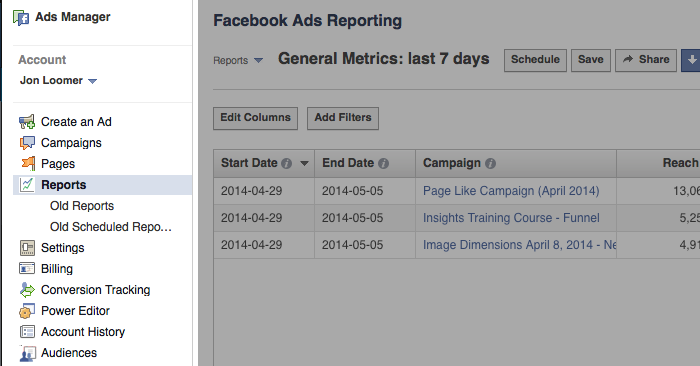
On the left hand side of your Ads Manager, click on Reports…
facebook ad reports click Advanced Facebook Ads: View Performance by Placement and Demographics
The default report isn’t particularly useful, and it’s why most advertisers don’t dig in more. It provides 17 columns of data for all campaigns run during the past seven days:
  • Start Date
  • End Date
  • Campaign
  • Reach
  • Frequency
  • Impressions
  • Clicks
  • Unique Clicks
  • Click-Through Rate (CTR)
  • Unique Click-Through Rate (uCTR)
  • Spend
  • Cost Per 1,000 Impressions (CPM)
  • Cost Per 1,000 People Reached
  • Cost Per Click (CPC)
  • Actions
  • People Taking Action
  • Page Likes
It’s not that this information is all worthless. It has value. But it’s information overload.
I prefer a report with a minimal number of columns focusing on your desired action.
For example, here are the columns I’d recommend for a Page Likes report:
  • Start Date
  • End Date
  • Campaign
  • Frequency
  • Spend
  • Page Likes
  • Cost Per Page Like
That’s 10 fewer columns, and it focuses on the metrics that truly matter to the objective of your campaign (Page Likes).

Edit Columns

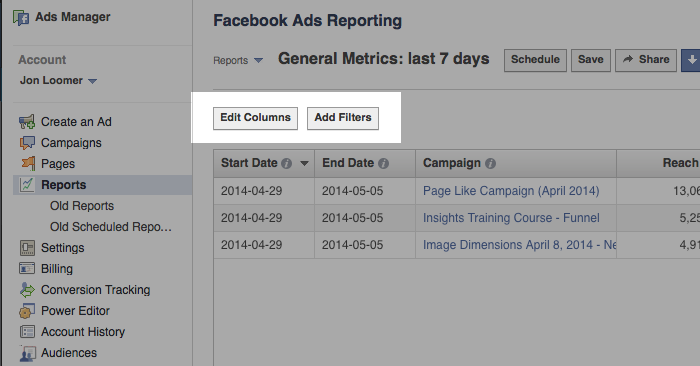
You can take control of your ad reports with the help of a simple button: Edit Columns.
It’s at the top left of your report, next to the Add Filters button…
facebook ad reports edit columns ad filters Advanced Facebook Ads: View Performance by Placement and Demographics
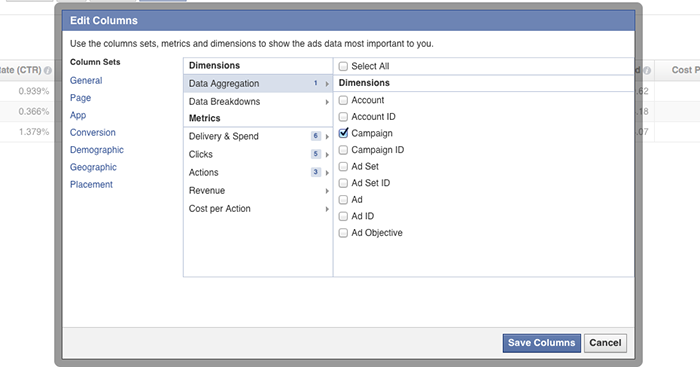
Click that beautiful button and you’ll get a dialog that looks like this…
facebook ad reports edit columns dialog Advanced Facebook Ads: View Performance by Placement and Demographics
By my count, there are 148 different columns you could choose for your report. That’s a lot!
Of course, you don’t want all of them. You shouldn’t even want 17 of them. But the right data should be available to you depending on the type of report you want to run.
You just need to find it!

Data Breakdowns

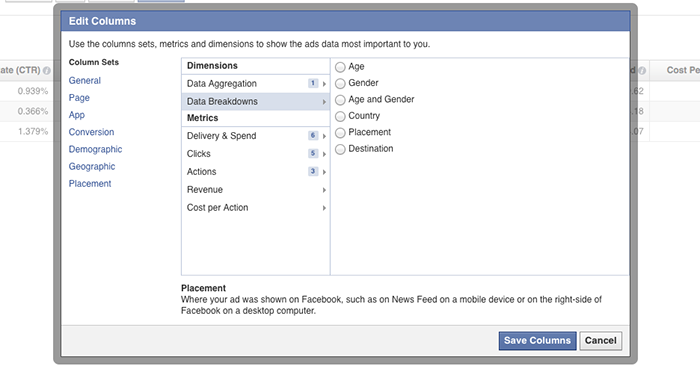
The true goldmine — and the motivation behind this blog post — is found in the Data Breakdowns section.
facebook ad reports data breakdowns default Advanced Facebook Ads: View Performance by Placement and Demographics
By default, Facebook doesn’t select any of this data. That’s why most advertisers don’t know it exists!
But click on any one (you can only select one at a time) and see how your ad is performing based on…
  • Age
  • Gender
  • Age and Gender
  • Country
  • Placement
  • Destination
Add a column for age…
facebook ad reports edit columns age Advanced Facebook Ads: View Performance by Placement and Demographics
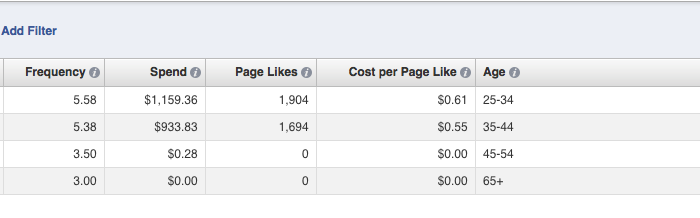
Facebook will break down performance based on the age of your audience:
  • 13-18
  • 18-24
  • 25-34
  • 35-44
  • 45-54
  • 55-64
  • 65+
As you can see in the example above, I was focusing on the ages of 25-44 and getting the most success from the 35-44 age group.
Add a column for gender…

facebook ad reports edit columns gender Advanced Facebook Ads: View Performance by Placement and Demographics
Facebook will break down performance based on the gender of your audience:
  • Male
  • Female
  • Unknown
I was seeing the best results from women, though it’s not a significant difference.
Add a column for age and gender…
facebook ad reports edit columns age and gender Advanced Facebook Ads: View Performance by Placement and Demographics
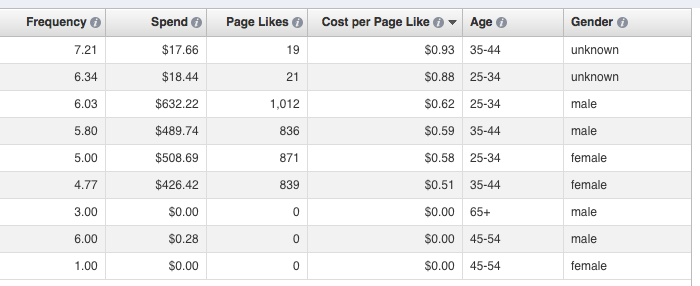
Facebook will break down performance based on the age and gender of your audience:
  • Male 13-18
  • Male 18-24
  • Male 25-34
  • Male 35-44
  • Male 45-54
  • Male 55-64
  • Male 65+
  • Female 13-18
  • Female 18-24
  • Female 25-34
  • Female 35-44
  • Female 45-54
  • Female 55-64
  • Female 65+
  • Unknown 13-18
  • Unknown 18-24
  • Unknown 25-34
  • Unknown 35-44
  • Unknown 45-54
  • Unknown 55-64
  • Unknown 65+
In the example above, the unknown and male groups tended to be most expensive, while I was getting the best results from women aged 35-44.
Add a column for country…
facebook ad reports edit columns country Advanced Facebook Ads: View Performance by Placement and Demographics
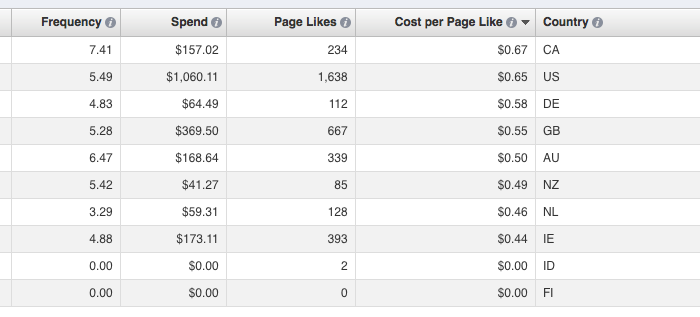
Facebook will create a column for countries, generating a row for each country served an impression. In my example above, it’s most expensive to get Page Likes in Canada and US and cheapest in the Netherlands and Ireland.
My favorite option, however, is adding a column for placement…
facebook ad reports edit columns placement Advanced Facebook Ads: View Performance by Placement and Demographics
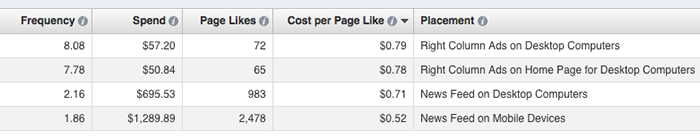
Facebook will break down performance based on the placement of your ad:
  • Right Column Ads on Desktop Computers
  • Right Column Ads on Home Page for Desktop Computers
  • News Feed on Desktop Computers
  • News Feed on Mobile Devices
As you can see in my results above, I’m getting the best Cost Per Page Like in this report on mobile devices. This has not always been the case. It’s why you constantly monitor your results!
Finally, you can add columns for destination. Facebook will highlight where someone went as a result of your ad. This could be your page, a custom tab or a link.

Save Your Reports!

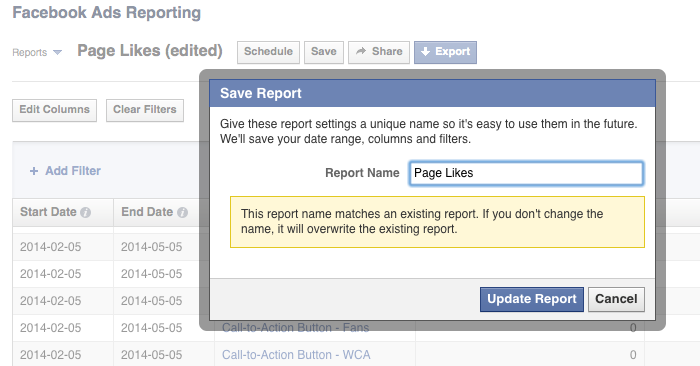
Once you’ve created this awesomely helpful report, it’s important that you save it for later. Otherwise, Facebook won’t keep it for you, and you’ll need to start over every time!
Click the Save button…
facebook ad reports save Advanced Facebook Ads: View Performance by Placement and Demographics
Name it something you’re remember later.
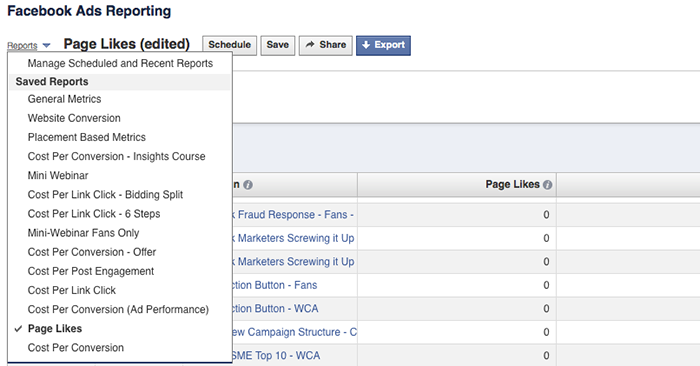
Every time you come back to your ad reports, Facebook will show you that same, lame, default report. But your saved reports will be available within the Reports drop-down at the top.

Foursquare CEO on Splitting Its App: 'At First, We Thought It Was Crazy'

Dennis-crowley
IMAGE: ERIC PIERMONT/AFP
Foursquare co-founder and CEO Dennis Crowley spoke on stage for the first time since the company's major announcement that it will split the app into two. "At first, we thought it was crazy to do this, but it makes total sense," he said.
During the New York Ideas conference in Manhattan on Tuesday, Crowley explained the initial apprehension about the split.
Last week, Foursquare announced it would launch a new app called Swarm for staying in touch with friends (and would focus on its signature check-in feature), and use the original Foursquare app for discovery. Swarm will launch next week, while the new Foursquare app will roll out over the summer, Crowley added.
"I wouldn't say we are deemphasizing the check-in," Crowley said.
"I wouldn't say we are deemphasizing the check-in," Crowley said. "We have gotten really good at making proactive recommendations, search and knowing where friends are (check-in), but we've turned into a swiss army knife type of product. We believe that the best apps out there are the ones with a single-case use that can be described in a sentence or tweet."
By simplifying the company's services, Crowley said each of the apps will be "much faster and easier to use."
Foursquare wants to place more emphasis on personalization and take the user's tastes into account, as well as opinions of trusted friends and experts.
"A lot of the stuff we are trying to build at Foursquare doesn't exist," he said. "One of the things that drives me nuts about searches is that if people do a search for a local restaurant nearby, everyone gets the same results — that seems so broken to me. We all have different tastes, friends and preferences, and no one has done personalized search like this in the real world yet."
Typically, local search is limited to answering your questions, but Foursquare is trying to add little touches that customize the experience.
"What if the phone was contextually aware of what you see on the street and where you were in a certain neighborhood or city?" Crowley asked. "You walk into a bar and get a pop up that your friend was here two weeks ago and they had the best dessert they've ever had in their life here, so you know you should get it."
Crowley also discussed growing Foursquare's business over the years.
"It's a lot harder than I thought it was," he said. "We thought we would have 10 employees and now we have more than 170. It's taught us all about how hard this can be and how patient you have to be for technology and the critical mass of people to catch up with concepts. It's more of a marathon than a sprint."
Have something to add to this story? Share it in the comments.

Wednesday, 7 May 2014

Coming Soon: Video Metrics

With the goal of helping you better understand how people respond to your videos on Facebook, today we’re announcing that new video metrics in Page Insights and Ads Reporting are coming soon.

Today, as a Page owner, you can only see how many people started watching your video. When the new metrics roll out over the coming weeks, you will also see information like video views, unique video views, the average duration of the video view and audience retention. These new metrics are designed to help you learn what’s resonating with people and determine how to more effectively create and promote your videos on Facebook.
Here’s a look at some of the upcoming new metrics:

See video views and the number of people that watched your video
We’ll show both the total number of video views and the number of people who watched your video. A “video view” is defined as a view of three seconds or more and will appear for all videos, including those that come to life as people scroll through News Feed. We’ve also renamed the “video plays” metric “clicks to play video.” These register after a person has clicked to play a video and it has started.

Understand your audience and learn what’s working
The audience retention graph in Page Insights shows the level of interest in different parts of your video. Spikes in the percentage of views at a certain point may indicate that people are re-watching particular moments, whereas a dip could show the precise moment when most people lost interest and stopped watching. 
Page Insights View
These new metrics will also allow you to see the number of views that reached certain points in a video — 25%, 50%, 75%, 95% and 100%. This information can help you discover how your video is performing and help you determine where to place key messages.

Ads Reporting View
Using the “data breakdowns” feature in Ads Reporting, you can also learn how specific audiences responded to your video. For example, if females between 18 and 34 are a demographic you target in your campaign, the data breakdown will show the number of views you received from that demographic.

Availability
Video metrics will be available for all paid and organic videos uploaded directly to Facebook Pages and will roll out gradually over the coming weeks. To learn more, check out our video metrics definitions and best practices guide here.