Thursday, 8 May 2014

Google+ Tips to Quickly Boost Results

Did you hear that? It’s the sound of your discomfort. That awkward, almost painful feeling associated with trying something new.  It’s also the mental roadblock telling you not to get involved. To run, not walk away from yet another social network.
Google+ Tips to Quickly Boost Results
But the time is now. Google+ is waiting and the door of opportunity for your business is wide open.
If you’re eager to create an energetic and collaborative community, there’s no better way to do it than through Google+!

1Let Your Pictures Do the Talking

Google+ Tips to Quickly Boost Results
The saying, “a picture is worth a thousand words” has never been truer than in the online space.
Google+ offers a beautiful way to let your pictures to take center stage.
Creating images that quickly capture the attention of your Google+ followers will let you instantly stand out.  No matter if it’s answers to your client’s biggest questions or an inspiring quote, adding that content it to an image creates differentiation.
Not only does the right image take up more real estate within the Google+ feed, but it also gives you the opportunity to boost engagement through viral shares.
The design of Google+ has the capacity to accommodate big, beautiful images. Using the right specifications can quickly capture the eye of any fast-moving Google+ follower.
The objective is to produce a graphic that represents your business and positions it in the best possible light.
Images with dimensions of 800 x 1200 look beautiful in the feed and find a larger audience. Take Peg Fitzpatrick’s post for example. It’s bold, crisp, straightforward, and immediately grabs your attention.

2Share Fun, Inspirational and Educational Content

Google+ Tips to Quickly Boost Results
One of the quickest ways to connect on any social network is to share what matters most to you. It can be personal or professional content; just make sure you’re giving people the motivation needed to get involved.
The more you can stimulate the senses, the better chance you have of getting your followers to come back for more.
This image from Guy Kawasaki has three elements of a perfect Google+ post: inspirational quote, beautiful image and a simple, streamlined look and feel.
  • Share your thoughts, expertise, mission, vision and values.
  • Give a nice shout out to your favorite blogs and websites.
  • Share inspirational thoughts, funny quotes and timely news stories.
  • Share other peoples content with context around it.
  • Don’t post and run away. Interact, connect and engage!
  • Be grateful. Thank people that share your content.
  • Be personalable and share details about your business in a fun and interactive way.
  • Follow people within your industry and niche and create a conversation. Get to know them, share their content and spread the good word about their business. This creates reciprocity and more meaningful interactions.
  • Repurpose your content. Just because it’s old to you, doesn’t mean it’s not new to someone else.

3Optimize Your Profile

Google+ Tips to Quickly Boost Results
Making the most of your Google+ profile is an opportunity you don’t want to miss. From contact information, to your skills, products and services, take advantage of the significant amount of space allotted within your “About” section.
Your “About” will be one of the first places anyone interested in connecting will land. Give them good reason to follow you.
  • This is not an area where you want to hold back on the details. Take the time to craft a bio that shares special insight into who you are and why you’re on Google+.
  • What do you do and how does that benefit your followers?
  • What makes you unique and how will that translate into useful content?
  • Link out to all of your online properties. From your website and blog to your landing page and social channels, allow your followers to connect with you no matter where they choose to spend their time.
  • Have fun with your bio! What are you passionate about? What do you do in your spare time and enjoy in your down time? People love to talk about what interests them. Give them the opportunity to engage with you around those topics they find most interesting.
Once you’ve optimized your Google+ “About” section, it’s time to freshen up your Google+ cover image. Your cover is a terrific marketing and branding opportunity, and a great way to allow your unique ability and skills to shine through.
The key to creating a compelling cover photo is to align it with your business look, feel and message.

Ask yourself a few questions before you get started:

  • Do you have a logo?
  • Have you identified your business colors and font?
  • Are both consistent across all of your online properties?
  • How have you branded your company so far? E.g. is it you or the brand at the forefront of your marketing?
  • How will Google+ extend the mission and purpose of your time spent online?
Once you’re ready to get started, hop over and design your Google+ cover photo by creating a custom image of 2120 x 1192. It’s simple, fun and creates a streamlined brand experience.
canva google plus cover photo

Last but not least…

To maximize Google+, you must first understand why your customers are spending their time on the social network.
What information are they looking for?
  • Insight and information and insider tips only found on social media
  • Deeper connections with their favorite businesses and brands
  • A community where they can share opinions with like-minded individuals
  • A way to be heard and find a voice in an often over-saturated social space?
  • Answers to their most pressing questions?
  • Advice on what to buy and whom to buy it from?
I suspect that it’s a mixture of at least two or three. But you’ll only know if you’re an active part of the conversation.
Commit every day to provide your Google+ followers with a VIP experience that leaves them feeling acknowledged, informed and vital to your community.
Google+ Tips to Quickly Boost Results http://blog.canva.com/google-tips-quickly-boost-results/Google+ Tips to Quickly Boost Results http://blog.canva.com/google-tips-quickly-boost-results/CanvaCanva Blog Posts

Source: http://blog.canva.com/google-tips-quickly-boost-results/

Advanced Facebook Ads: View Performance by Placement and Demographics

Facebook Ad Reports
If you monitor the performance of your ads diligently, you can limit waste and focus budget on what is most effective. Your results will differ depending on the audience and placement of your ads.
This is done through split testing. In the past, the only way to accomplish this was through creating many different ads for age groups, gender, country and placement. But that’s no longer required.
The magic is found within Facebook’s ad reports. The old version of these reports was more or less worthless. As a result, advertisers ignore them. But an update last year makes them one of the most powerful tools in an advertiser’s tool box.
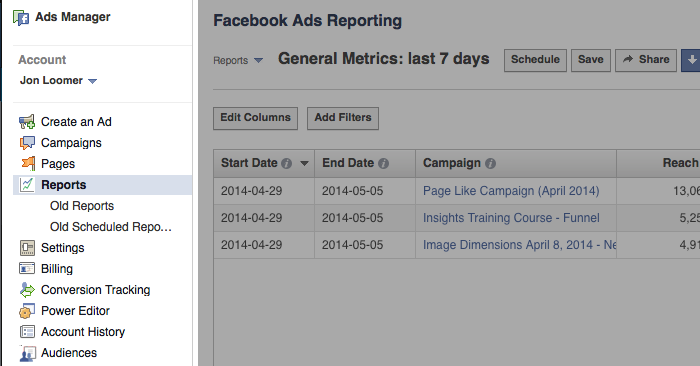
On the left hand side of your Ads Manager, click on Reports…
facebook ad reports click Advanced Facebook Ads: View Performance by Placement and Demographics
The default report isn’t particularly useful, and it’s why most advertisers don’t dig in more. It provides 17 columns of data for all campaigns run during the past seven days:
  • Start Date
  • End Date
  • Campaign
  • Reach
  • Frequency
  • Impressions
  • Clicks
  • Unique Clicks
  • Click-Through Rate (CTR)
  • Unique Click-Through Rate (uCTR)
  • Spend
  • Cost Per 1,000 Impressions (CPM)
  • Cost Per 1,000 People Reached
  • Cost Per Click (CPC)
  • Actions
  • People Taking Action
  • Page Likes
It’s not that this information is all worthless. It has value. But it’s information overload.
I prefer a report with a minimal number of columns focusing on your desired action.
For example, here are the columns I’d recommend for a Page Likes report:
  • Start Date
  • End Date
  • Campaign
  • Frequency
  • Spend
  • Page Likes
  • Cost Per Page Like
That’s 10 fewer columns, and it focuses on the metrics that truly matter to the objective of your campaign (Page Likes).

Edit Columns

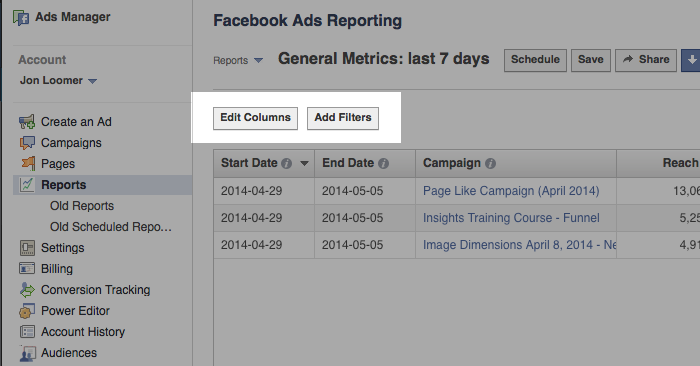
You can take control of your ad reports with the help of a simple button: Edit Columns.
It’s at the top left of your report, next to the Add Filters button…
facebook ad reports edit columns ad filters Advanced Facebook Ads: View Performance by Placement and Demographics
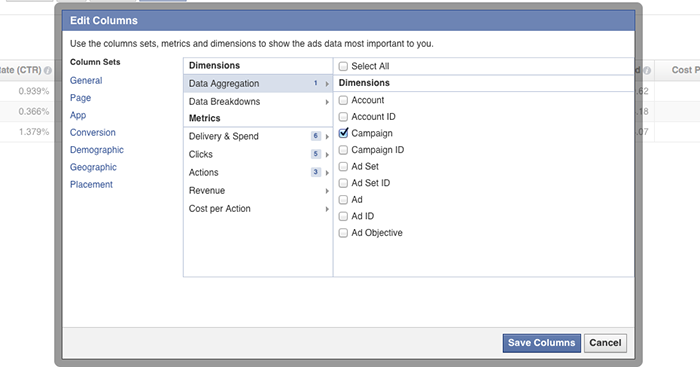
Click that beautiful button and you’ll get a dialog that looks like this…
facebook ad reports edit columns dialog Advanced Facebook Ads: View Performance by Placement and Demographics
By my count, there are 148 different columns you could choose for your report. That’s a lot!
Of course, you don’t want all of them. You shouldn’t even want 17 of them. But the right data should be available to you depending on the type of report you want to run.
You just need to find it!

Data Breakdowns

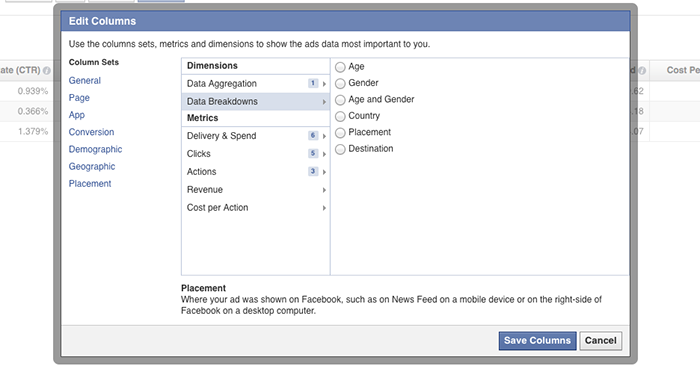
The true goldmine — and the motivation behind this blog post — is found in the Data Breakdowns section.
facebook ad reports data breakdowns default Advanced Facebook Ads: View Performance by Placement and Demographics
By default, Facebook doesn’t select any of this data. That’s why most advertisers don’t know it exists!
But click on any one (you can only select one at a time) and see how your ad is performing based on…
  • Age
  • Gender
  • Age and Gender
  • Country
  • Placement
  • Destination
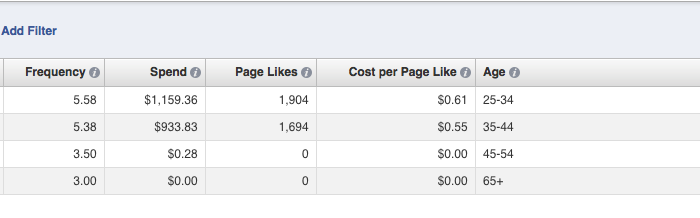
Add a column for age…
facebook ad reports edit columns age Advanced Facebook Ads: View Performance by Placement and Demographics
Facebook will break down performance based on the age of your audience:
  • 13-18
  • 18-24
  • 25-34
  • 35-44
  • 45-54
  • 55-64
  • 65+
As you can see in the example above, I was focusing on the ages of 25-44 and getting the most success from the 35-44 age group.
Add a column for gender…
facebook ad reports edit columns gender Advanced Facebook Ads: View Performance by Placement and Demographics
Facebook will break down performance based on the gender of your audience:
  • Male
  • Female
  • Unknown
I was seeing the best results from women, though it’s not a significant difference.
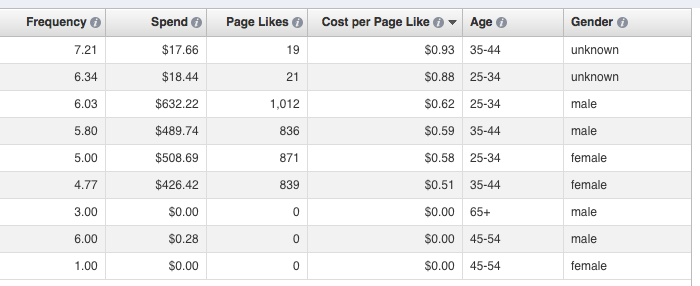
Add a column for age and gender…
facebook ad reports edit columns age and gender Advanced Facebook Ads: View Performance by Placement and Demographics
Facebook will break down performance based on the age and gender of your audience:
  • Male 13-18
  • Male 18-24
  • Male 25-34
  • Male 35-44
  • Male 45-54
  • Male 55-64
  • Male 65+
  • Female 13-18
  • Female 18-24
  • Female 25-34
  • Female 35-44
  • Female 45-54
  • Female 55-64
  • Female 65+
  • Unknown 13-18
  • Unknown 18-24
  • Unknown 25-34
  • Unknown 35-44
  • Unknown 45-54
  • Unknown 55-64
  • Unknown 65+
In the example above, the unknown and male groups tended to be most expensive, while I was getting the best results from women aged 35-44.
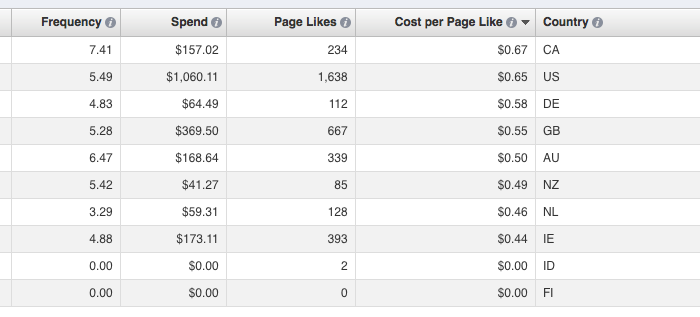
Add a column for country…
facebook ad reports edit columns country Advanced Facebook Ads: View Performance by Placement and Demographics
Facebook will create a column for countries, generating a row for each country served an impression. In my example above, it’s most expensive to get Page Likes in Canada and US and cheapest in the Netherlands and Ireland.
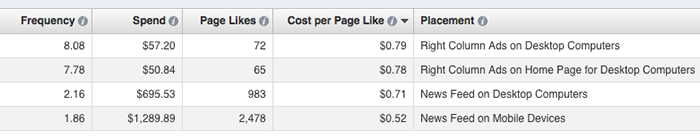
My favorite option, however, is adding a column for placement…
facebook ad reports edit columns placement Advanced Facebook Ads: View Performance by Placement and Demographics
Facebook will break down performance based on the placement of your ad:
  • Right Column Ads on Desktop Computers
  • Right Column Ads on Home Page for Desktop Computers
  • News Feed on Desktop Computers
  • News Feed on Mobile Devices
As you can see in my results above, I’m getting the best Cost Per Page Like in this report on mobile devices. This has not always been the case. It’s why you constantly monitor your results!
Finally, you can add columns for destination. Facebook will highlight where someone went as a result of your ad. This could be your page, a custom tab or a link.

Save Your Reports!

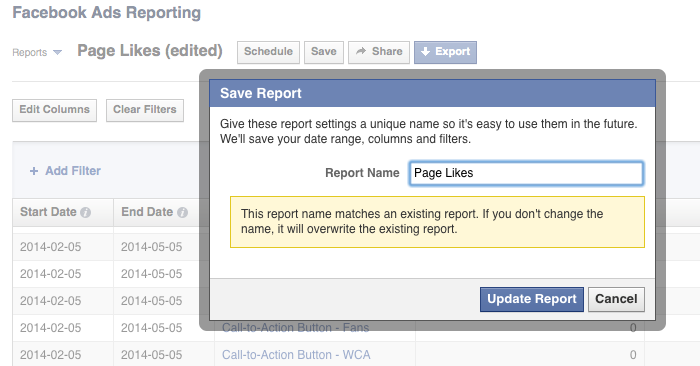
Once you’ve created this awesomely helpful report, it’s important that you save it for later. Otherwise, Facebook won’t keep it for you, and you’ll need to start over every time!
Click the Save button…
facebook ad reports save Advanced Facebook Ads: View Performance by Placement and Demographics
Name it something you’re remember later.
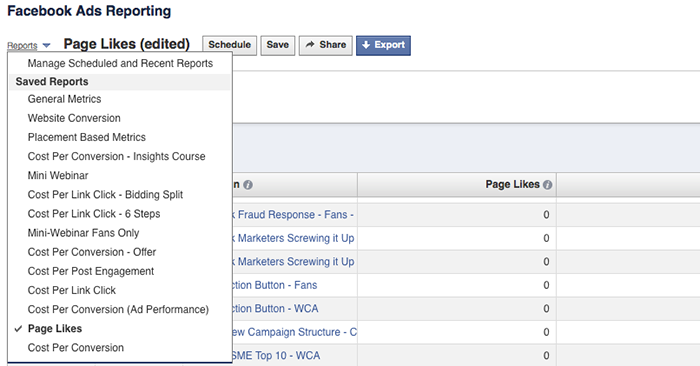
Every time you come back to your ad reports, Facebook will show you that same, lame, default report. But your saved reports will be available within the Reports drop-down at the top.


Foursquare CEO on Splitting Its App: 'At First, We Thought It Was Crazy'

Dennis-crowley
IMAGE: ERIC PIERMONT/AFP
Foursquare co-founder and CEO Dennis Crowley spoke on stage for the first time since the company's major announcement that it will split the app into two. "At first, we thought it was crazy to do this, but it makes total sense," he said.
During the New York Ideas conference in Manhattan on Tuesday, Crowley explained the initial apprehension about the split.
Last week, Foursquare announced it would launch a new app called Swarm for staying in touch with friends (and would focus on its signature check-in feature), and use the original Foursquare app for discovery. Swarm will launch next week, while the new Foursquare app will roll out over the summer, Crowley added.
"I wouldn't say we are deemphasizing the check-in," Crowley said.
"I wouldn't say we are deemphasizing the check-in," Crowley said. "We have gotten really good at making proactive recommendations, search and knowing where friends are (check-in), but we've turned into a swiss army knife type of product. We believe that the best apps out there are the ones with a single-case use that can be described in a sentence or tweet."
By simplifying the company's services, Crowley said each of the apps will be "much faster and easier to use."
Foursquare wants to place more emphasis on personalization and take the user's tastes into account, as well as opinions of trusted friends and experts.
"A lot of the stuff we are trying to build at Foursquare doesn't exist," he said. "One of the things that drives me nuts about searches is that if people do a search for a local restaurant nearby, everyone gets the same results — that seems so broken to me. We all have different tastes, friends and preferences, and no one has done personalized search like this in the real world yet."
Typically, local search is limited to answering your questions, but Foursquare is trying to add little touches that customize the experience.
"What if the phone was contextually aware of what you see on the street and where you were in a certain neighborhood or city?" Crowley asked. "You walk into a bar and get a pop up that your friend was here two weeks ago and they had the best dessert they've ever had in their life here, so you know you should get it."
Crowley also discussed growing Foursquare's business over the years.
"It's a lot harder than I thought it was," he said. "We thought we would have 10 employees and now we have more than 170. It's taught us all about how hard this can be and how patient you have to be for technology and the critical mass of people to catch up with concepts. It's more of a marathon than a sprint."
Have something to add to this story? Share it in the comments.